Your First Strategy
This guide walks you through building a trading strategy using BrighterTrading's visual block editor. No coding required.
The strategy builder
BrighterTrading uses Blockly — a visual programming system where you snap together blocks like puzzle pieces to define trading logic. If you've ever used Scratch, it works the same way.
Opening the editor
- Open the Strategies panel in the right sidebar
- Click New Strategy
- The Blockly editor opens in the centre of the screen
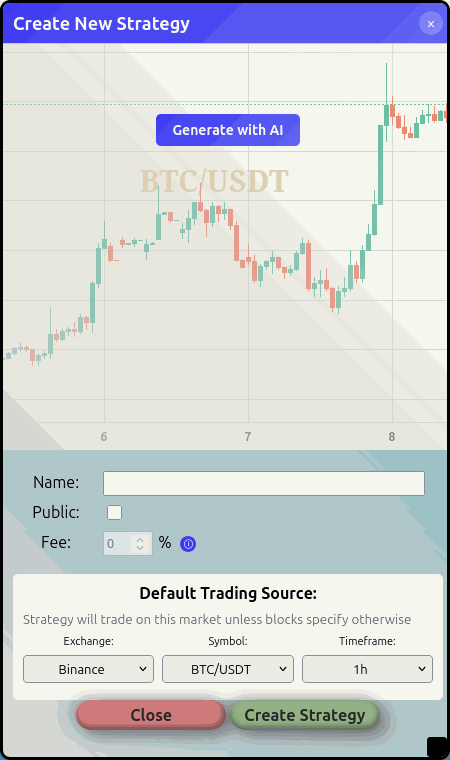 The visual strategy builder — drag blocks from the toolbox on the left and snap them together
Block categories
The toolbox on the left side of the editor contains blocks organised into categories:
| Category | What it provides |
|---|---|
| Indicators | Read values from your configured indicators (SMA, RSI, MACD, etc.) |
| Signals | Check whether your signals are currently firing |
| Formations | Check price position relative to trendlines, channels, Fibonacci levels |
| Balances | Check account balances and available funds |
| Order Metrics | Information about pending and recent orders |
| Trade Metrics | Information about open positions and trade history |
| Time Metrics | Time-based conditions for your strategy |
| Market Data | Current price, bid/ask, candle data |
| Logical | Comparisons and logic operators (and, or, not) |
| Trading | Unified Spot/Margin/Futures trading: select mode, open/close positions, update SL/TP, add collateral, plus attachable trade options |
| Control | Conditional execution, pause, resume, exit, scheduling |
| Values and Flags | Variables, flags, and notifications |
| Margin Trading | Margin-specific read-only helpers (total collateral in use) |
| Futures Trading | Futures-specific read-only helpers (funding rate, mark price) |
| Math | Arithmetic, statistics, rounding, and mathematical functions |
Using the editor
When the strategy dialog opens, the Blockly workspace fills the centre of the dialog.
Resizing. The dialog opens at a default size. Drag the bottom-right corner to make it larger — this gives you more canvas space and reveals all block categories in the toolbox. You can also drag the title bar to reposition the dialog.
The toolbox runs down the left side. Click a category name to open its flyout — the available blocks slide out and you can drag them onto the canvas. If the dialog is small, some categories may be below the visible area. Scroll the toolbox with your mouse wheel, or resize the dialog to see them all.
The canvas is where you build. Drag blocks from the flyout and snap them together. You can:
- Pan — click and drag an empty area of the canvas
- Zoom — mouse wheel over the canvas
- Delete — drag a block to the bin icon, or select it and press Delete
Key concepts
Even though BrighterTrading uses visual blocks instead of code, you're still programming. These concepts will help you build effective strategies even if you've never written a line of code.
Conditions — "If this, then do that"
Every strategy is built on conditions. The execute_if block (in the Control category) is the foundation — it checks a condition and only runs the blocks inside it when that condition is true.
Conditions use the blocks from the Logical category:
- comparison — is one value greater than, less than, or equal to another?
- logical_and — are both conditions true?
- logical_or — is at least one condition true?
- is_false — flip a condition (true becomes false, false becomes true)
For example: "If RSI is less than 30 and I haven't already bought" requires a comparison block inside a logical_and block.
Variables — saving values for later
Sometimes you need to store a number to use later. The set_variable block saves a value with a name you choose, and get_variable reads it back.
For example, you might save the price when you bought so you can later calculate how far the price has moved from your entry.
Flags — on/off switches
Flags are simpler than variables — they're just true or false. Use set_flag to turn one on or off, and flag_is_set to check its state.
The most common use is preventing duplicate trades. Before buying, check that your "bought" flag is false. After buying, set it to true. Before selling, check that it's true. After selling, set it back to false.
The setup pattern — run something once
Strategies run in a loop — the blocks execute every few seconds. But sometimes you need to set initial values only on the first run. Use the is_first_run block (in Control) plugged into an execute_if:
- Drag an execute_if block onto the canvas
- Drag is_first_run into its condition slot
- Inside the body, set your initial variables, leverage, or any other one-time configuration
The body runs once, on the strategy's very first tick, and is skipped every tick after.
Chaining — do this, then do that
Blocks snap together vertically. When one block finishes, the next one runs. Inside an execute_if block, you might have an Open Position block followed by a set_flag — first the trade happens, then the flag updates.
You can also chain trade options: attach a stop_loss block inside Open Position's options slot, then chain a take_profit after it. The trade will be placed with both protections.
Building a simple strategy
Here's a step-by-step example of a basic RSI strategy:
- Make sure you've added an RSI indicator first (from the Indicators panel in the right sidebar)
- From Control, drag an execute_if block onto the canvas
- From Logical, drag a logical_and block into the condition slot
- From Logical, drag a comparison block into the left side of the AND — set it to check: RSI value less than 30
- From Values and Flags, drag a flag_is_set block into the right side of the AND — set the flag name to "bought" and check for FALSE
- From Trading, drag an Open Position block inside the "do" section — pick Long and enter an amount
- From Values and Flags, chain a set_flag block after the Open Position — set "bought" to TRUE
- Build a second execute_if block below for selling: RSI greater than 70 AND "bought" is TRUE, then drag a Close Position (All) and set "bought" to FALSE
- Give your strategy a name and save it
Start simple. A strategy with two or three conditions is easier to understand, debug, and backtest than one with twenty. You can always add complexity later once you've validated the core idea.
Generate with AI
Don't want to build blocks by hand? Click Generate with AI and describe your strategy in plain English.
 Describe your strategy in words and let AI build the blocks for you
For example:
"Buy when RSI drops below 30 and sell when it goes above 70. Use 10% of my balance for each trade."
The AI will generate the Blockly blocks for you. You can then review and adjust them before saving.
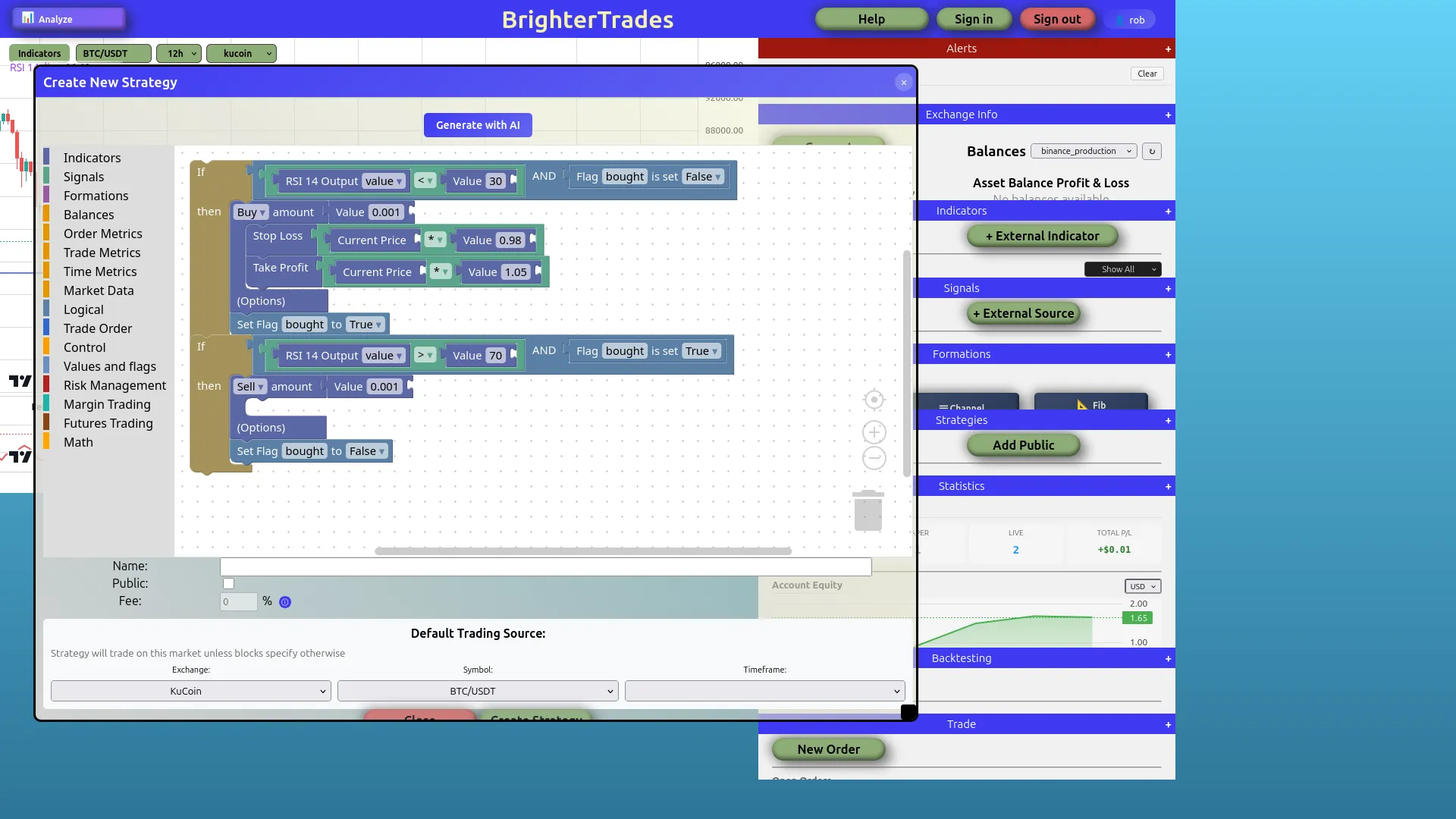 An AI-generated RSI strategy with buy/sell conditions, flag management, stop loss, and take profit
Strategy settings
- Name — A label for your strategy
- Public — Toggle to share your strategy with other users on the platform
- Fee % — If public, set a fee percentage you earn when others use your strategy profitably
- Default trading source — The exchange and symbol this strategy trades on by default
Changing the trading source
If you've built a strategy on, say, KuCoin ETH/USDT 5m and decide you want it to trade on Binance BTC/USDT 1h instead, you don't need to rebuild it block-by-block. Open the strategy's edit dialog and click Change Source.
The wizard runs in three steps:
- Pick the new source — exchange, symbol, timeframe.
- Preview — the wizard shows you exactly which indicators will be cloned onto the new source (or reused if you already have a matching indicator there) plus any warnings. Cross-source indicators (e.g. a 12h BTC macro filter inside a 5m ETH strategy) are left alone — the wizard only retargets indicators whose source matches the strategy's current default. Signals that reference indicators by name are surfaced as warnings; you'll need to update those manually after retargeting.
- Apply — the strategy's Blockly blocks are rewritten in lockstep,
default_sourceupdates, and a row is recorded in the strategy's change-history footer.
The wizard refuses to run while the strategy is running (paper, live, or backtest). Stop it first.
Next steps
The golden rule: build → backtest → paper trade → live. Never skip steps.
- Backtest it against historical data to see how it would have performed
- Paper trade it with simulated funds to test with live data
- When you're confident, go live