Getting Started
This guide walks you through creating an account, signing in, and finding your way around BrighterTrading for the first time.
Creating an account
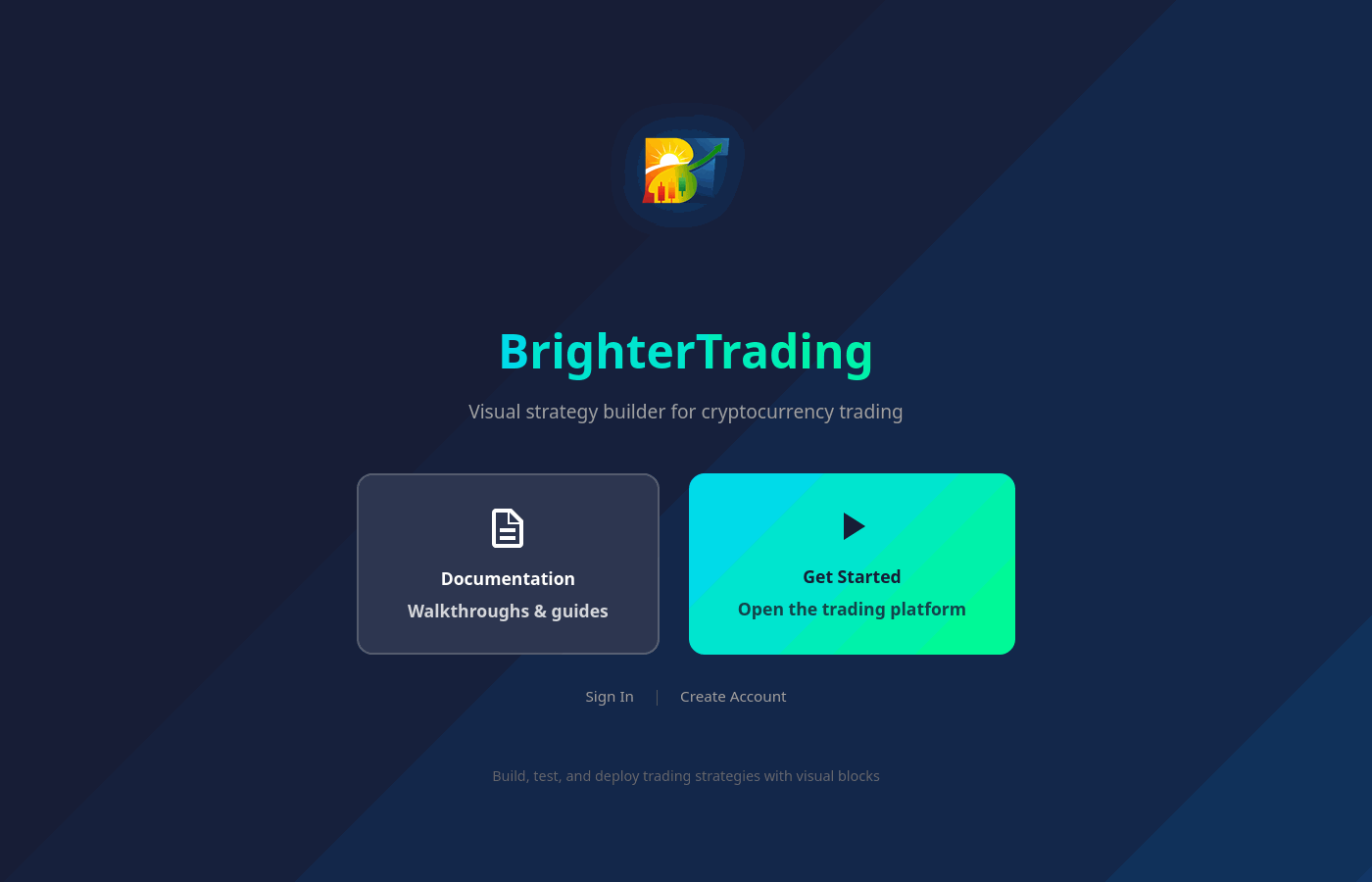 The welcome page — your starting point
- Go to bt.brrd.tech and click Create Account
- Fill in your details:
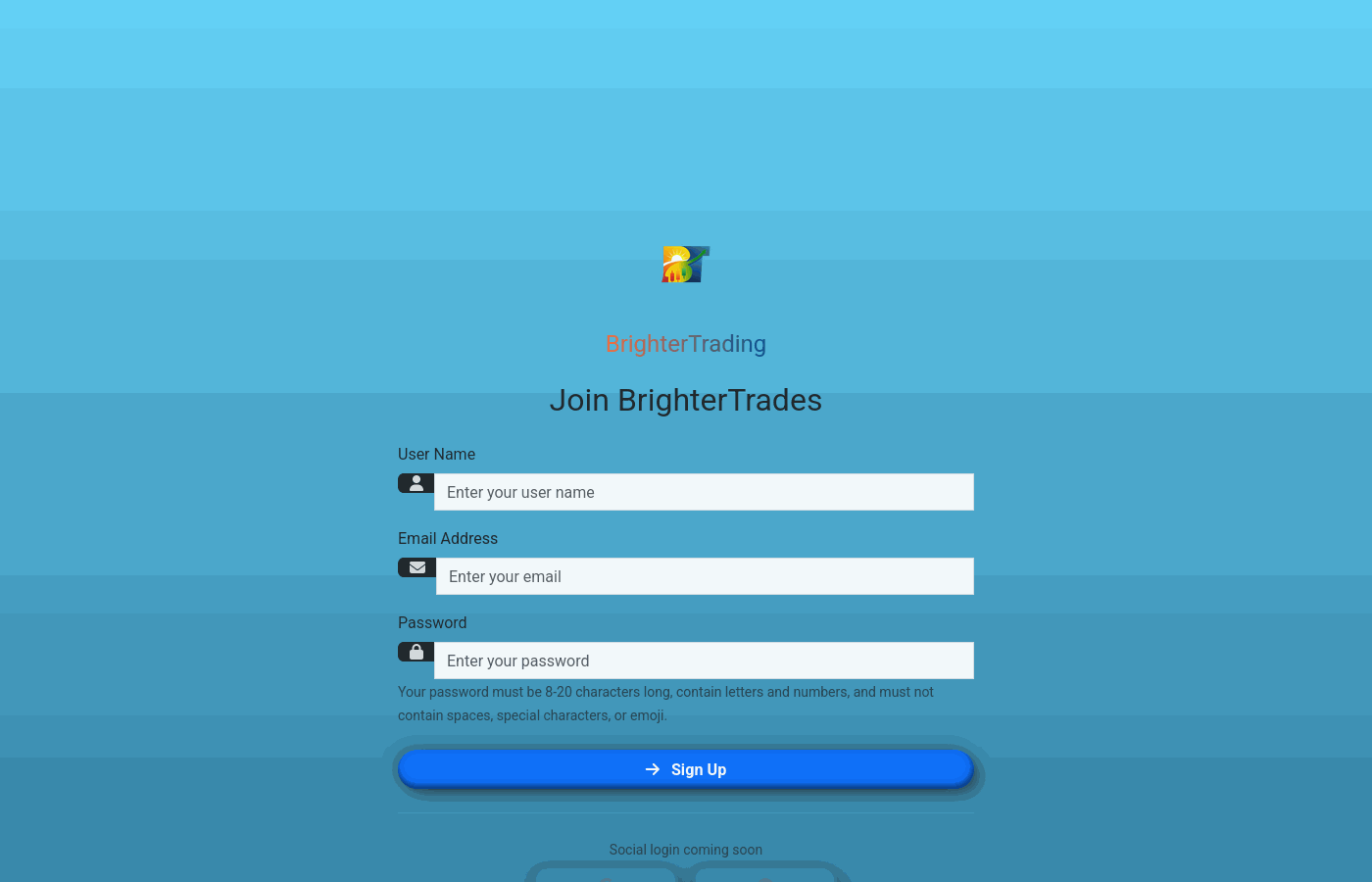 Account creation is quick — just a username, email, and password
- Username — This is your display name on the platform
- Email — Used for account recovery
- Password — Must be at least 12 characters long
- Click Sign Up
You can also sign up with your Google or GitHub account -- click the corresponding icon below the sign-up form. This skips email verification since your provider has already verified your identity. A username is generated automatically from your email address.
You'll be taken straight to the main app.
Signing in
- Go to bt.brrd.tech and click Sign In
- Enter your Username and Password, or click the Google or GitHub icon to sign in with your social account
- Click Sign In
If you've forgotten your password, click the Forgot your password? link on the sign-in page.
What you'll see
After signing in, you'll land on the main trading platform at /app. Here's a quick orientation:
- Header — App name, the Analyze button, and your user avatar with sign in/out controls
- Chart area — A live candlestick chart showing real-time price data
- Chart controls — Above the chart, you can change the trading pair, timeframe, and exchange
- Right sidebar — Collapsible panels for all the platform features: Alerts, Exchange Info, Indicators, Signals, Formations, Strategies, Statistics, Backtesting, and Trade
Don't worry about understanding everything at once. The platform overview guide covers each area in detail.
Next steps
- Explore the chart — Try changing the trading pair, timeframe, or exchange using the controls above the chart
- Add an indicator — Open the Indicators panel and add something like Bollinger Bands or RSI to get a feel for the tools
- Build your first strategy — Follow the your first strategy guide when you're ready to start building