Adding External Data — Binance Open Interest
The built-in indicators (RSI, MACD, EMA, Bollinger, …) operate on the candles you're already trading. But sometimes the most useful information is outside the candle data — order book imbalance, options skew, on-chain flows, sentiment scores, and (the example for this tutorial) futures open interest.
This tutorial shows how to plug an external API into BrighterTrading using the External Indicator feature. The same indicator definition serves both backtesting (historical fetch) and live/paper trading (current value), so once you set it up, strategies that reference it just work in either mode.
- What futures open interest is and why traders watch it
- How to configure an External Indicator with both historical and live modes
- How JSONPath maps an arbitrary API response into a numeric indicator
- How to validate the configuration with the Test Connection button
- How to extend the indicator with a second named output (notional value)
What is open interest (in 90 seconds)?
Open interest is the total number of outstanding futures contracts for a market. Every contract has a long side and a short side; OI counts each contract once.
- OI rising while price rises → new money entering longs. The trend has fresh fuel.
- OI rising while price falls → aggressive shorting. Bears are pressing.
- OI falling while price rises → shorts covering. Squeeze in progress.
- OI falling while price falls → longs liquidating. Capitulation.
Read together with price, OI tells you whether a move is being driven by new positions or by existing positions closing. That distinction often separates trend continuation from reversal.
For Binance's BTCUSDT perp, OI typically sits between 80,000 and 130,000 BTC contracts at the time of writing. The notional value (in USD) is more intuitive for sizing context — usually $5–10 billion.
Why a strategy might care:
- Regime filter: only trend-follow when OI is climbing (confirming the trend).
- Mean-reversion signal: rapid OI spikes often precede sharp reversals.
- Risk gate: cap position size during low-liquidity / low-OI windows.
We're not going to use it for any of those today — that's a future tutorial. For now we're just wiring the data in so a strategy can use it.
The Binance API endpoints
Binance Futures exposes two open interest endpoints, both public, no auth required:
Historical — for backtesting:
https://fapi.binance.com/futures/data/openInterestHist?symbol=BTCUSDT&period=5m&startTime=...&endTime=...&limit=...
Sample response:
[
  {"symbol":"BTCUSDT","sumOpenInterest":"96909.25","sumOpenInterestValue":"7657546122.74","timestamp":1745740500000},
  {"symbol":"BTCUSDT","sumOpenInterest":"97142.83","sumOpenInterestValue":"7703320196.27","timestamp":1745740800000}
]
Current — for live trading:
https://fapi.binance.com/fapi/v1/openInterest?symbol=BTCUSDT
Sample response:
{"symbol":"BTCUSDT","openInterest":"97202.59","time":1745741914705}
Two things to notice:
- The fields have different names between endpoints (
sumOpenInterestvsopenInterest). That's a real-world API quirk we'll work around using BrighterTrading's Latest from historical live mode — we'll have the live fetcher hit the historical endpoint with&limit=1so the JSONPath stays the same. - The historical endpoint also returns
sumOpenInterestValue— the USD notional value of all those contracts. We'll add that as a second output near the end of the tutorial.
Open the External Indicator dialog
In the right panel, expand Indicators if it's collapsed and click + External Indicator:
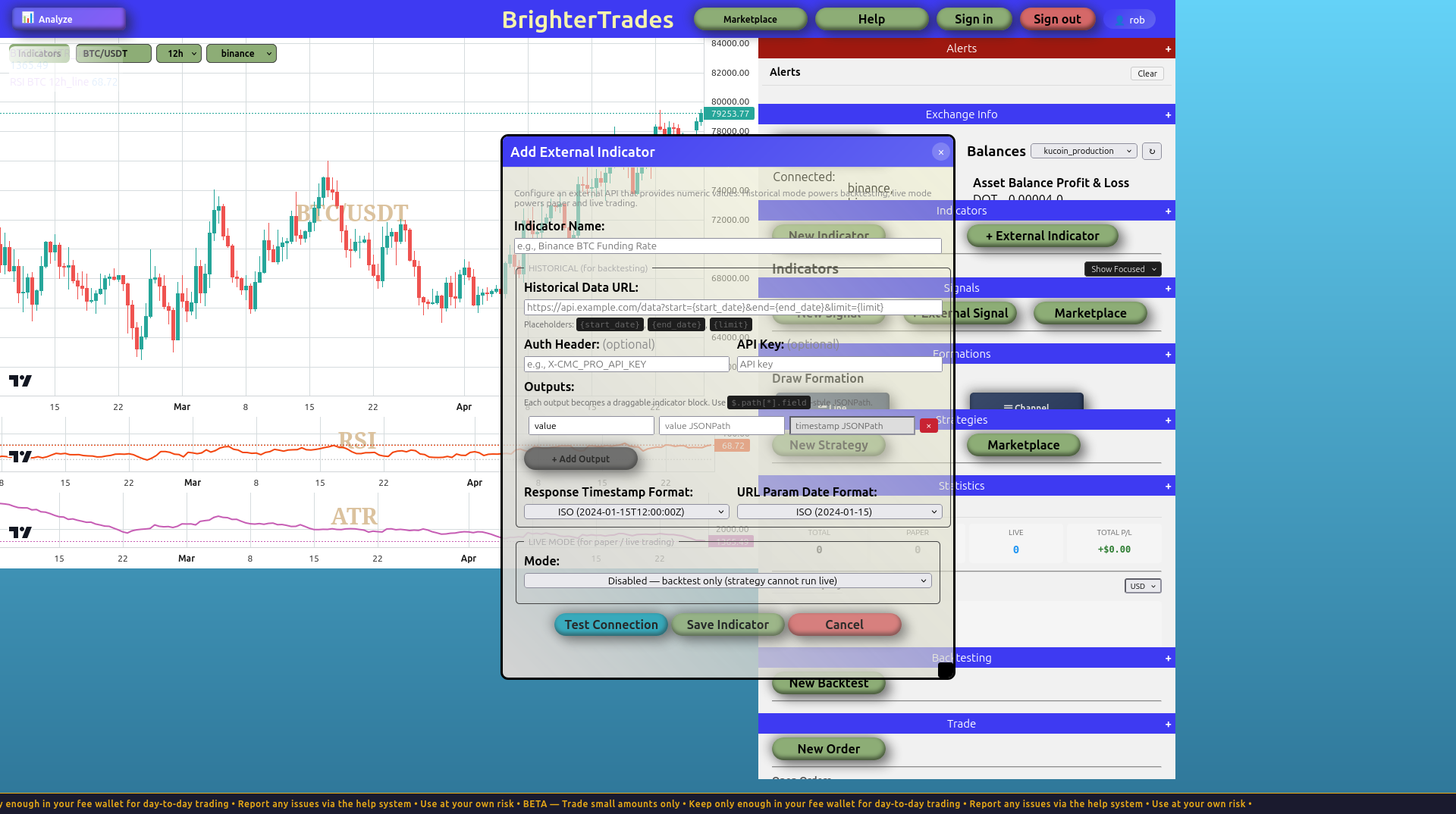
The dialog is divided into three logical sections:
- Historical — for backtesting. URL template, optional auth, and one or more outputs (each with its own JSONPath pair).
- Live mode — for paper / live trading. Three options: separate URL, derive latest from historical, or disabled.
- Buttons — Test Connection, Save Indicator, Cancel.
The dialog seeds one default output row called value so you don't start from a blank repeater. Most indicators only need this one output — you'd add more (e.g. notional value, mark price, premium) only if your API returns multiple useful fields in the same response.
Fill in the historical config
| Field | Value |
|---|---|
| Indicator Name | Binance BTC Open Interest |
| Historical Data URL | https://fapi.binance.com/futures/data/openInterestHist?symbol=BTCUSDT&period=5m&startTime={start_date}&endTime={end_date}&limit={limit} |
| Auth Header / API Key | (leave blank — public endpoint, no auth needed) |
| Output → name | value |
| Output → value JSONPath | $[*].sumOpenInterest |
| Output → timestamp JSONPath | $[*].timestamp |
| Response Timestamp Format | Unix (seconds or milliseconds) |
| URL Param Date Format | Unix Milliseconds (Binance, Bybit, OKX) |
The placeholders matter. {start_date}, {end_date}, and {limit} get substituted at fetch time. Without them the platform can't ask the API for a specific window.
The JSONPath syntax: $[*].sumOpenInterest means "for every element in the root array, give me the sumOpenInterest field." If you've never seen JSONPath before, $ is the root, [*] matches every array element, and .field is property access. The JSONPath playground is a useful quick reference.
Set the live mode
Scroll down to LIVE MODE. This is the part of the design that the rest of the platform pivots on, so it's worth understanding the three options:
- Disabled — backtest only. Strategies referencing this indicator can't be deployed live or paper. Useful if the data has no reasonable "current value" representation (e.g., a once-monthly economic release).
- Separate live URL — the live endpoint is structurally different from the historical one. You provide both.
- Latest from historical — the live URL is "the historical URL with a tweak" (commonly
&limit=1). You give an explicit URL template — no client-side magic. The platform fetches it on the configured interval and uses the most-recent point.
For Binance OI we'll use Latest from historical because it lets us reuse the same JSONPath. The current-value endpoint exists but uses a different field name; sticking with the historical endpoint at &limit=1 keeps the config simpler.
| Field | Value |
|---|---|
| Mode | Latest from historical — use a tweaked historical URL... |
| Latest-from-Historical URL | https://fapi.binance.com/futures/data/openInterestHist?symbol=BTCUSDT&period=5m&limit=1 |
| Refresh Interval (seconds) | 300 |
Why 300 seconds? Binance's OI history has 5-minute granularity, so polling more often than once per 5 minutes just returns the same value. Matching the data cadence avoids wasted requests.
The dialog should now look like this:
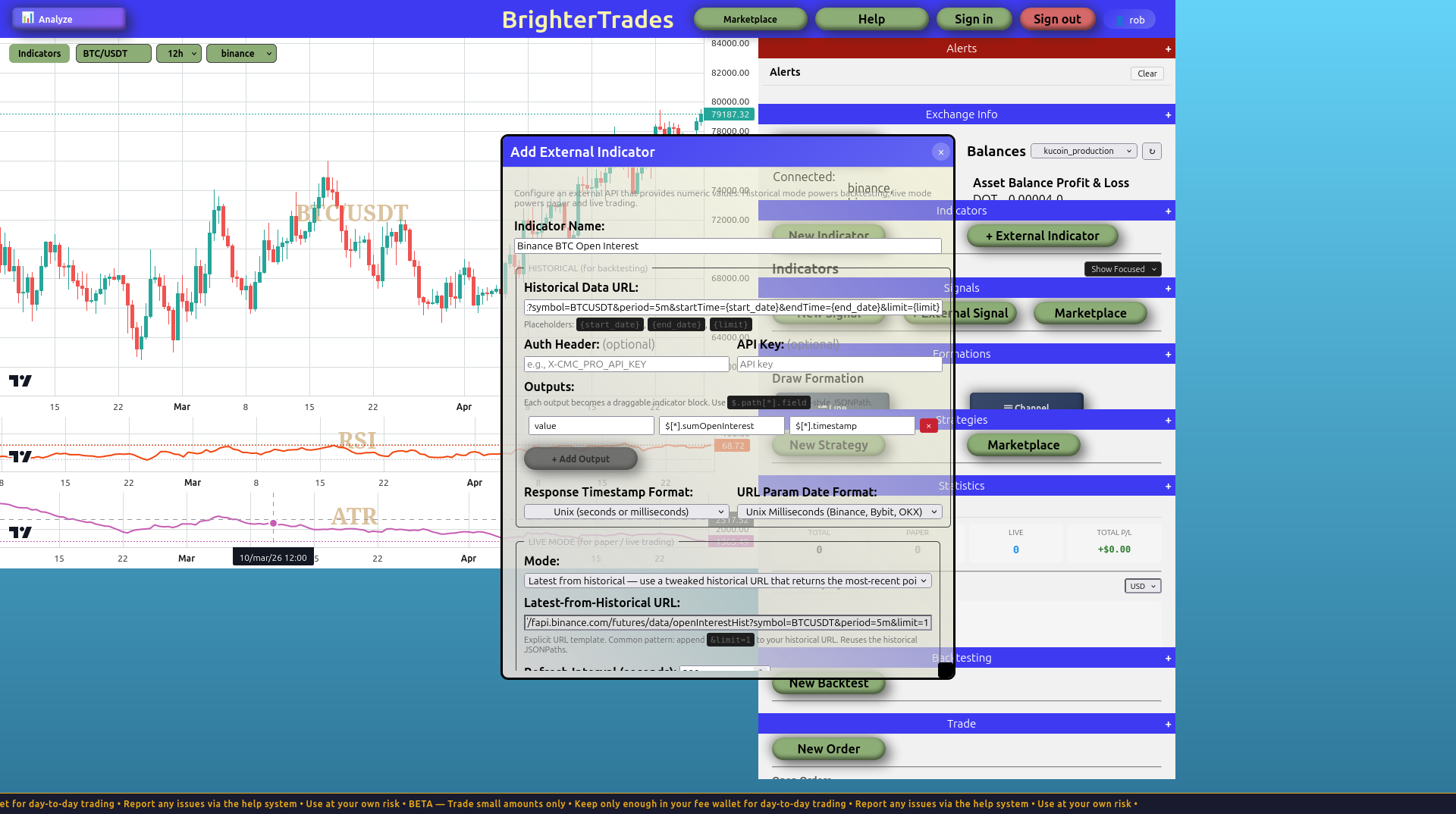
Click Test Connection
The Test button hits the historical endpoint with a 7-day sample window and parses the response with your JSONPaths. Successful output looks like:
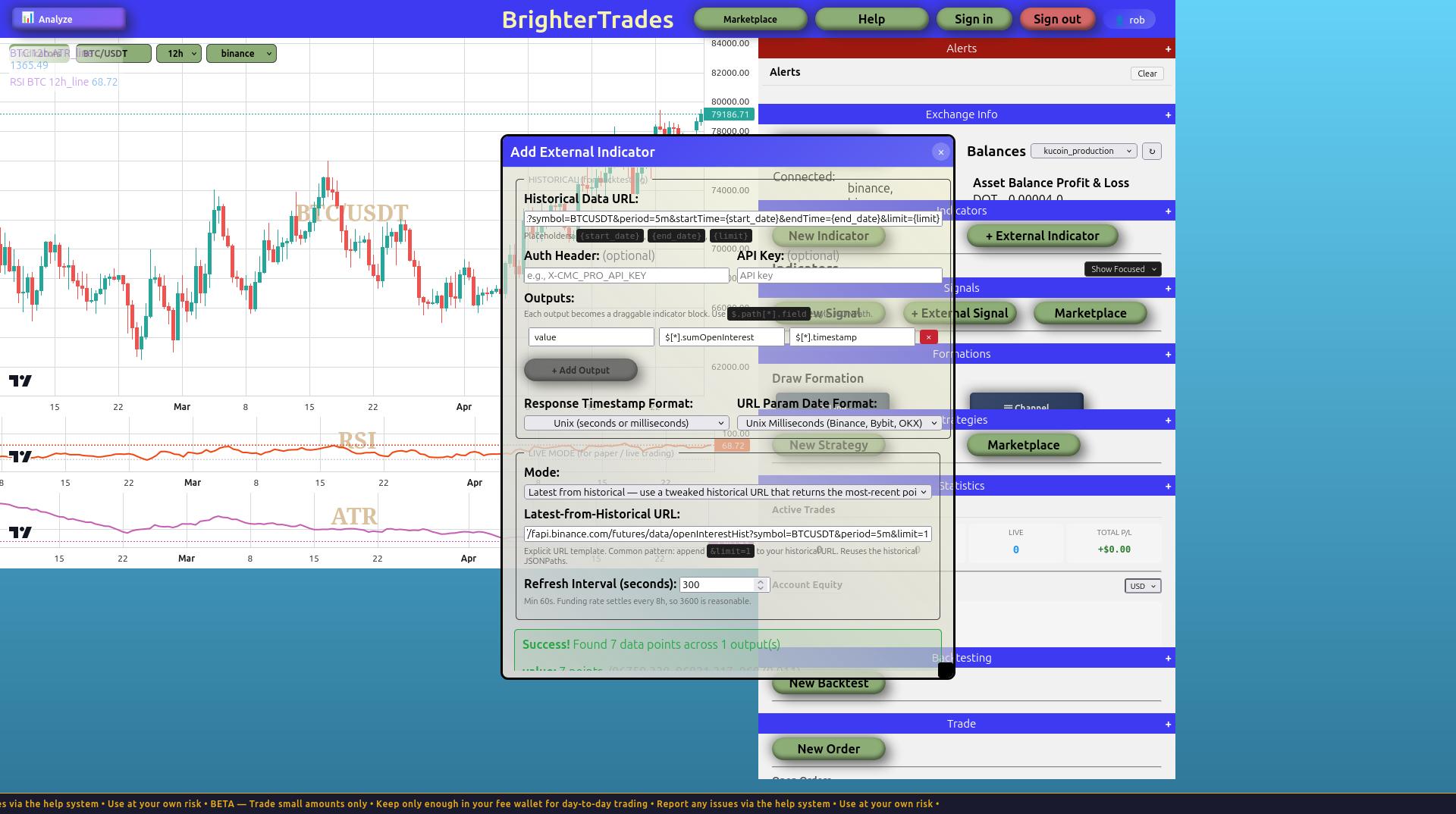
Success! Found 7 data points across 1 output(s) — value: 7 points
That tells you:
- The URL works (no HTTP error)
- Your placeholders substituted correctly
- The JSONPath extracted real numeric values
- The timestamp parser recognized the format
- All sample timestamps were inside the requested window
If any of those fails the dialog shows the actual API response in a scrollable preview, so you can see what shape the data really has.
Test Connection doesn't try the live URL. The live fetch happens on the per-candle refresh loop after Save. If your live URL is broken, you'll see the indicator marked degraded in the right panel within one refresh interval — not at save time.
Save and confirm
Click Save Indicator. The platform creates the indicator and shows it in the right panel under External Indicators:
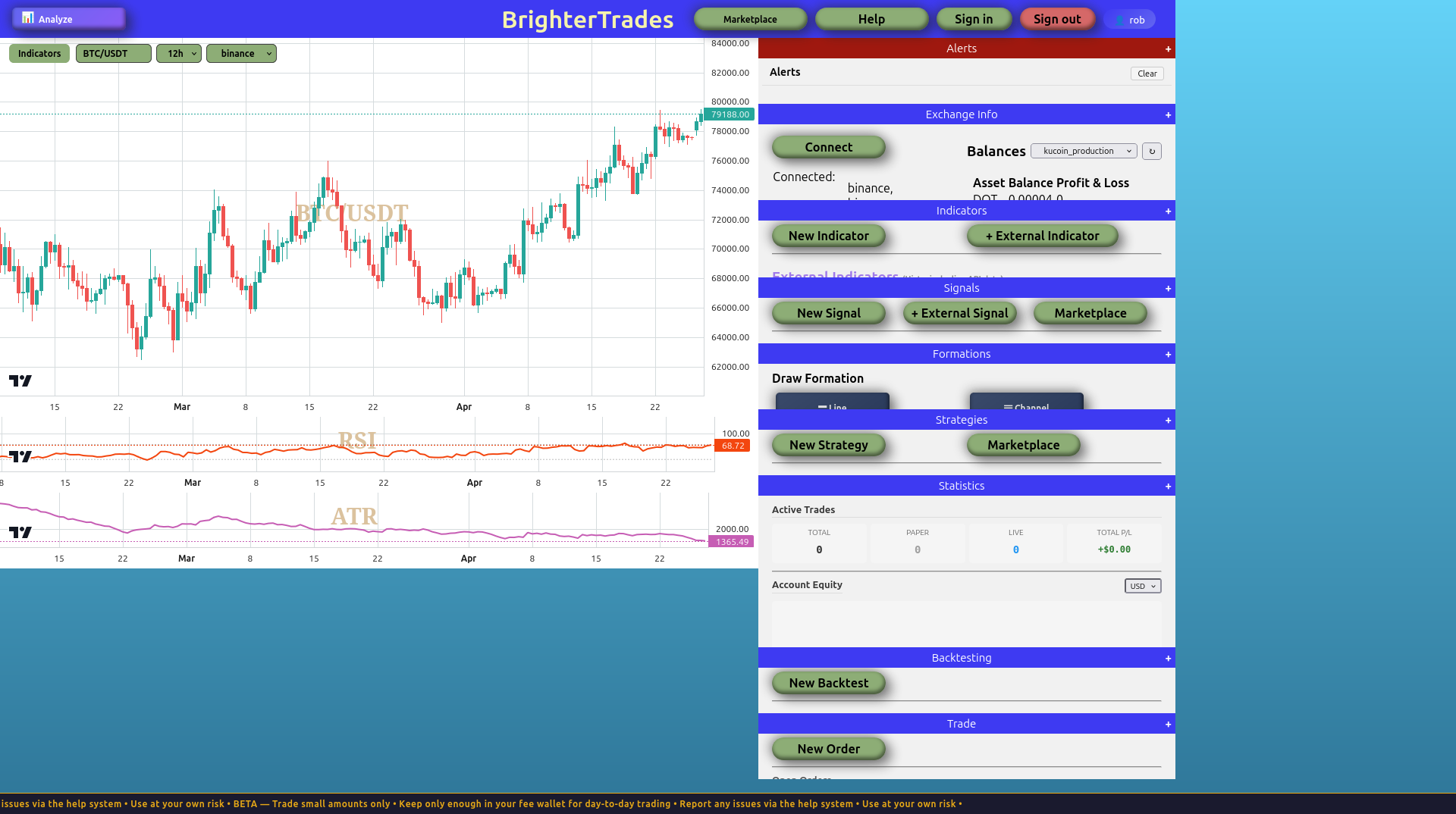
Two badges to know:
degraded(red) appears when the live fetch has been failing past its refresh interval. Strategies reading the indicator getNonerather than a stale value. The badge clears automatically when a fresh fetch succeeds.live disabled(grey) appears for indicators withlive_mode='disabled'. Strategies referencing one of these refuse to deploy live with a clearEXTERNAL_INDICATOR_MISSING_LIVE_URLerror.
Neither should be present right now — yours is configured for live and the test passed.
Bonus: multi-output (contracts AND notional)
The historical endpoint also returns sumOpenInterestValue — the USD notional. To expose both as outputs from one indicator:
- Click the indicator in the panel to edit it (or delete and recreate).
- In the Outputs section, click + Add Output.
- Add a second row:
- name:
notional - value JSONPath:
$[*].sumOpenInterestValue - timestamp JSONPath:
$[*].timestamp
- name:
- Test and save.
After saving, the Blockly indicator block for "Binance BTC Open Interest" gains a dropdown with two output choices: value (contracts) and notional (USD). Strategies can reference either independently.
This is the multi-output pattern: one config, one fetch, multiple named values. Useful when an API returns several related fields in the same response — saves you from configuring the same endpoint twice.
What you just built
You now have an indicator that:
- Fetches Binance OI history on demand for any backtest range
- Polls the latest OI value every 5 minutes for live and paper trading
- Appears in the Blockly Indicators category as
Binance BTC Open Interest Output value— draggable into any strategy - Appears in the Signals source dropdown so you can build named conditions like "OI Spike =
Binance BTC Open Interest Output value > 100000"
Example: using it in a strategy
Once the indicator exists, dropping it into a strategy is just another block. You can drag Binance BTC Open Interest Output from the Indicators category in the Blockly toolbox and use it like any other indicator value — feed it into a comparison block, combine it with other conditions, store it in a flag, whatever fits the strategy.
Or you can let the AI builder do it. Here's a strategy generated from the prompt "long-only BTC/USDT 1h, enter when RSI crosses up through 50 AND open interest is greater than 95000, exit when RSI crosses below 50, with 2% stop loss and 4% take profit, position size 5% of equity, one position at a time":
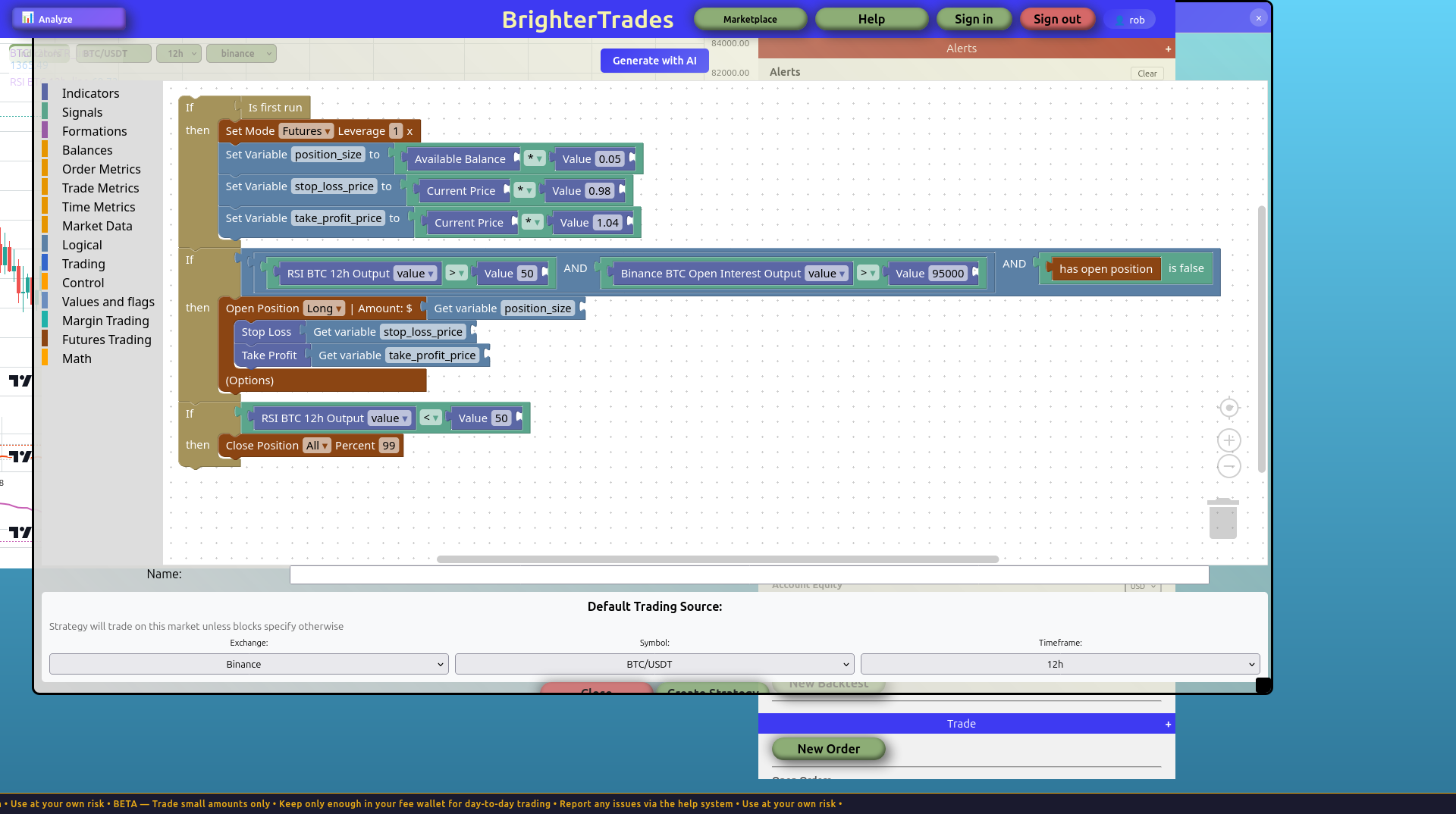
The OI block sits inline with the RSI condition: RSI Output > 50 AND Binance BTC Open Interest Output value > 95000 AND not has open position → open long. No special wiring, no signal wrapper, just a numeric comparison.